Web player & dashboard
Server settings in the dashboard
Every setting on Musico's dashboard Settings page: prefix, DJ roles, allowed channels, 24/7, autoplay, vote skip, announcements and default volume.
The Settings page is where server admins configure Musico without typing commands. To open it, log in, open your server and go to Settings, or run /settings in Discord for a direct link.
After changing anything, click Save. Musico confirms when your settings are saved.
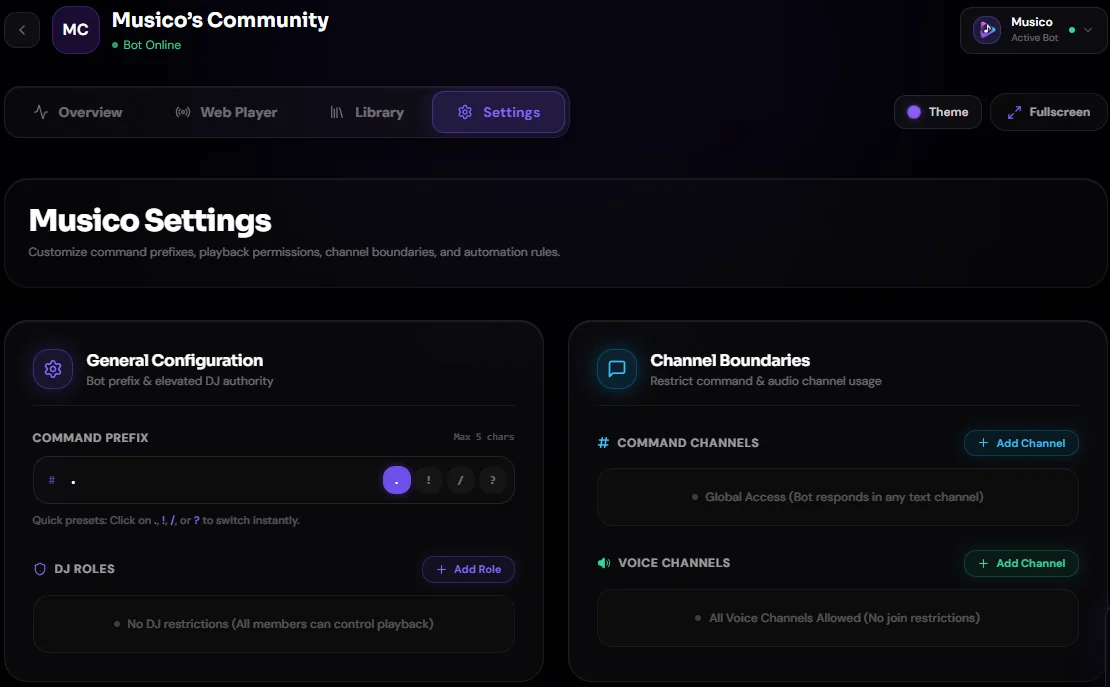
General configuration
| Setting | What it does | Command equivalent |
|---|---|---|
| Command Prefix | The prefix for text commands, up to 5 characters. Quick presets: . ! / ? | /setprefix |
| DJ Roles | Roles that count as DJs. Click Add Role. With none set, everyone can control playback | /setdj |
See DJ mode and Prefix and default volume.
Channel boundaries
| Setting | What it does |
|---|---|
| Command Channels | Text channels where Musico's commands can be used |
| Voice Channels | Voice channels Musico is allowed to join |
Click Add Channel to add one. Leave them empty to allow all channels. The page shows "Global Access" and "All Voice Channels Allowed" when nothing is restricted. See Restrict channels.
Audio & playback automation
| Setting | What it does | Plan |
|---|---|---|
| 24/7 Mode | Musico stays connected even when the voice channel is empty | Premium Silver+ |
| Auto-Play | Keeps queueing similar tracks when the queue ends | Premium Silver+ |
| Vote Skip | Listeners vote to skip, instead of anyone skipping instantly | Free |
| Announcements | Posts a "now playing" message when each song starts | Free |
| Voice Channel Status | Shows the current song as the voice channel's status | Free |
Without Premium, the 24/7 and Auto-Play toggles show an upgrade prompt. See 24/7 mode and Autoplay.
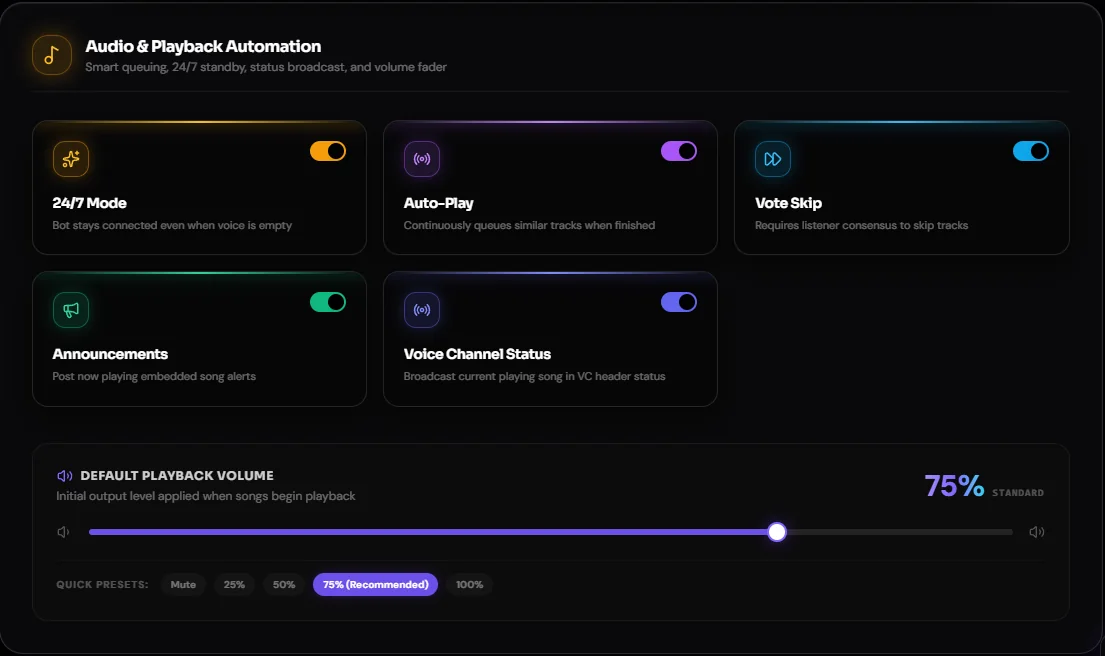
Default playback volume
The volume Musico starts at in your server. Quick presets are Mute, 25%, 50%, 75% (recommended) and 100%. Same as /defaultvolume.
DJ command permissions
Further down the Settings page, DJ Command Permissions lets you choose exactly which commands are DJ-only. See DJ mode.
Each bot has its own settings
If your server uses more than one Musico bot, settings are saved per bot. Pick the bot with the switcher in the top-right corner before changing settings.
Who can change settings
You need the Manage Server permission in the Discord server to change its settings. Server owners and admins usually have it. If you can open the server but not change anything, ask an admin to give your role Manage Server, or to make the change for you.
Still stuck? Ask in the Musico support server.