Playlists
Your library and liked songs
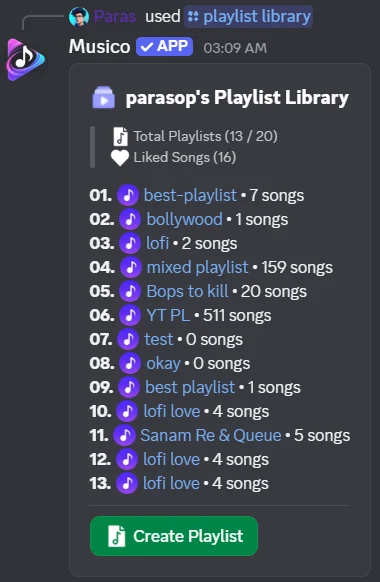
Find all your Musico playlists and liked songs with /playlist library or in the web player, and play them in any server.
Your library holds every playlist you've made plus your liked songs. It belongs to your Discord account, so it follows you to every server that has Musico.
Open your library in Discord
/playlist library
Shows your playlist library: how many playlists you have out of your limit, how many liked songs you have, and every playlist with its number of songs. Click a playlist name to open it, or Create Playlist to make a new one.
Open your library in the browser
- Log in at musicobot.xyz.
- Open your server and go to the Library tab.
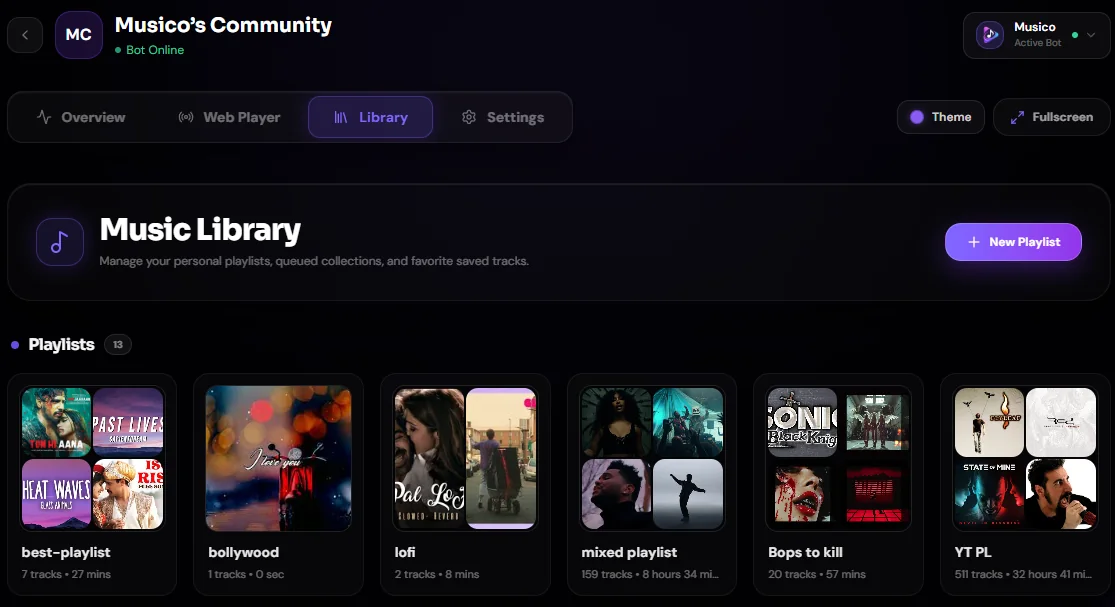
- Browse your playlists and liked songs, and play them in the voice channel. Each playlist card shows its track count and total length. Click New Playlist to create one.
Import your Spotify playlists
If your Spotify account is connected to Discord (User Settings → Connections → Spotify), Musico can see your Spotify playlists. Open Profile on musicobot.xyz: your Spotify account shows as Linked to Musico Bot, and Browse Playlists lets you pick Spotify playlists to bring into Musico.
Liked songs
Liked songs are the fastest way to collect tracks without building a playlist. You can like the song that's playing in two places:
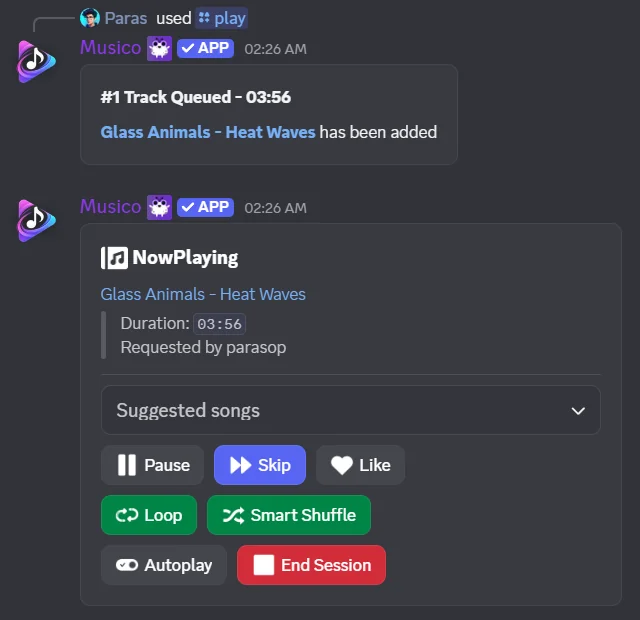
- In Discord: click the like button on Musico's "now playing" message, or on the music panel.
- In the web player: click the like button next to the song. Click it again to remove it.
Related
Still stuck? Ask in the Musico support server.