Getting started
Add Musico to your Discord server
Invite Musico to your Discord server in under a minute. You need the Manage Server permission on the server you want to add it to.
Musico is free to add. All you need is a Discord account with the Manage Server permission on the server you want to add it to. If you own the server, you already have it.
Invite the bot
- Open the Musico invite link, or click Add to Discord anywhere on musicobot.xyz.
- Discord asks which server to add Musico to. Pick your server from the Add to server list and click Continue.
- Review the permissions Musico asks for and click Authorize. Leave them all ticked; see Permissions for why each one is needed.
- Complete the captcha if Discord shows one.
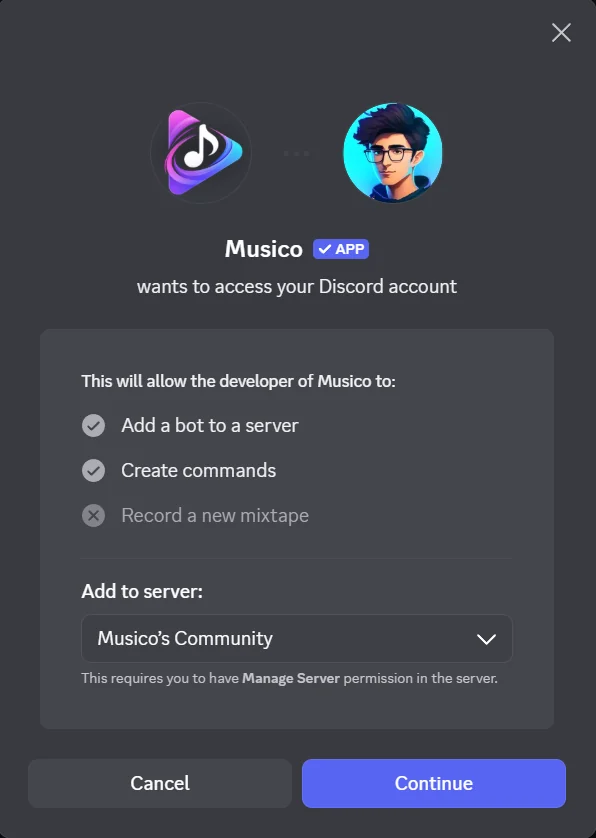
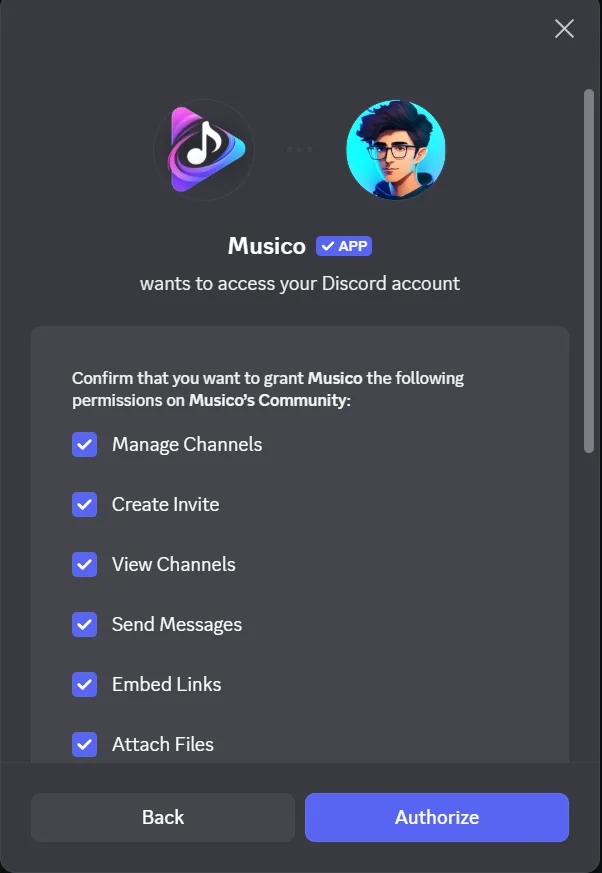
Musico now appears in your server's member list. You can start playing music straight away.
Server not in the list? Discord only shows servers where you have the Manage Server permission. Ask the server owner or an admin to add Musico, or to give your role that permission.
Inviting the other Musico bots
Musico has four bots: Musico, Musico 2, Musico 3 and Musico Prime. Each one can play in a different voice channel at the same time. Run /invite in any server that already has Musico and click the bot you want to add:
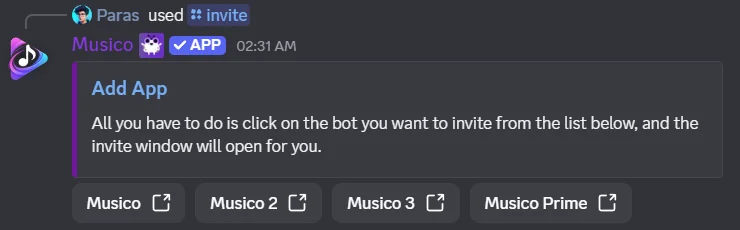
The extra bots come with Premium: see which plan includes which bots.
Next steps
- Play your first song
- Learn how commands work
- Set up DJ mode if you want to control who can skip songs.
Still stuck? Ask in the Musico support server.