Getting started
Permissions Musico needs
The Discord permissions Musico asks for when you invite it, what each one is used for, and how to fix permission problems in a single channel.
When you invite Musico, Discord asks you to approve a set of permissions. Musico needs them to join voice channels, play audio and reply to your commands. It does not ask for Administrator.
The permissions
| Permission | Why Musico needs it |
|---|---|
| Connect | Join your voice channel |
| Speak | Play audio in the voice channel |
| Send Messages | Reply to commands and post "now playing" messages |
| Embed Links | Show song info, the queue and buttons as rich messages |
| Attach Files | Send files such as images with its replies |
| Read Message History | Work with its own earlier messages, like the music panel |
| Add Reactions | React to messages where needed |
| Manage Messages | Clean up its own messages and keep the music panel tidy |
| Use Application Commands | Respond to slash commands |
| Manage Channels | Server-level features that change channel settings |
| Manage Server | Server-level settings features |
Fixing permission problems in one channel
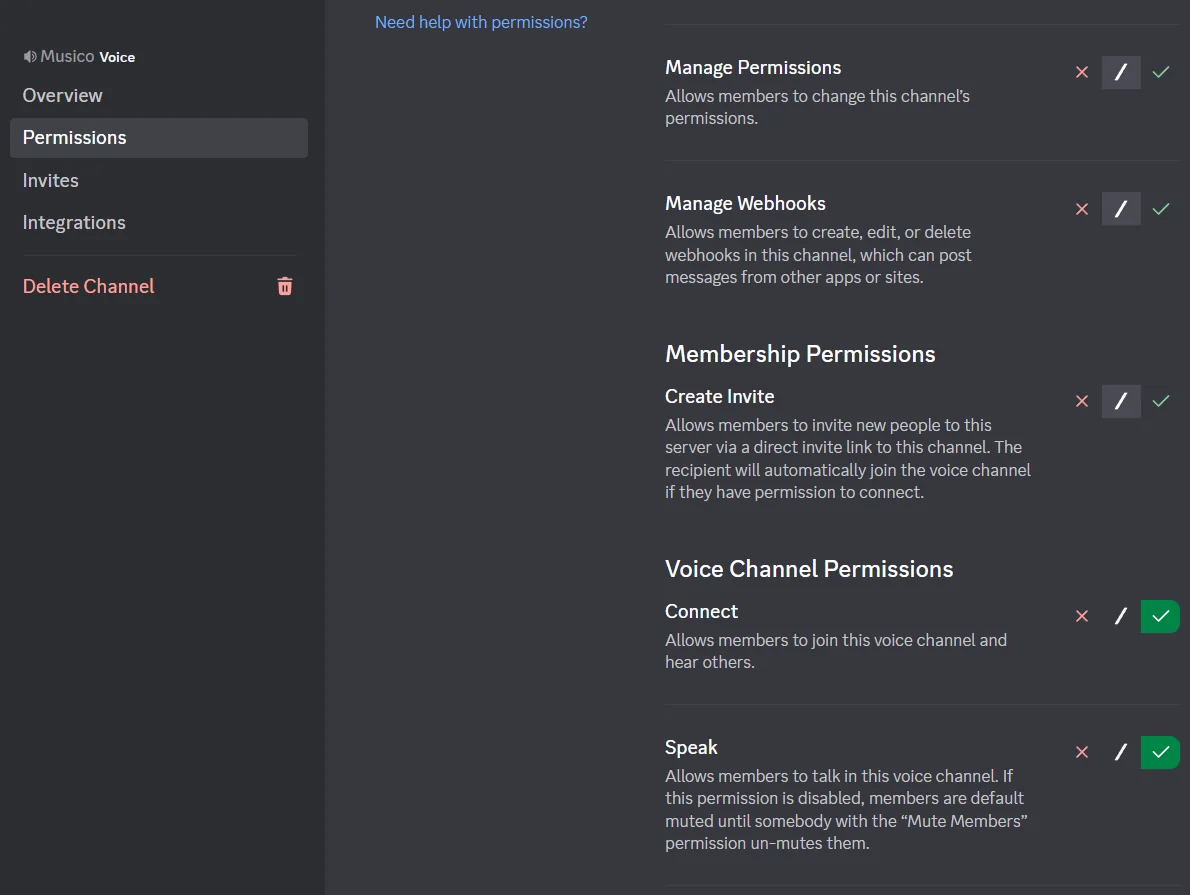
Server-wide permissions can be overridden per channel. If Musico works in one place but not another, check that channel's settings:
- Right-click the voice or text channel and choose Edit Channel.
- Open Permissions and select Musico (or its role).
- Make sure View Channel, Connect and Speak (for voice), or View Channel, Send Messages and Embed Links (for text), are not set to the red ✕.
Full or locked voice channels. If a voice channel has a user limit and it's full, Musico can't join unless it has the Move Members permission or you raise the limit.
If Musico still can't join or play, see Bot not joining and No sound.
Still stuck? Ask in the Musico support server.