Getting started
Play your first song
Join a voice channel, type /play with a song name or link, and Musico starts playing for everyone in the channel.
Once Musico is in your server, playing music takes two steps.
1. Join a voice channel
Musico plays music in the voice channel you are in, so join one first. If you run a music command while you're not in a voice channel, Musico will ask you to join one.
2. Use /play
In any text channel Musico can see, type:
/play never gonna give you up
As you type /play, Discord shows Musico's command. Select it, type a song name or paste a link into the query field, and press Enter. Musico joins your voice channel and starts playing.

Musico confirms the song was queued, then posts a Now Playing message with buttons to control the music:
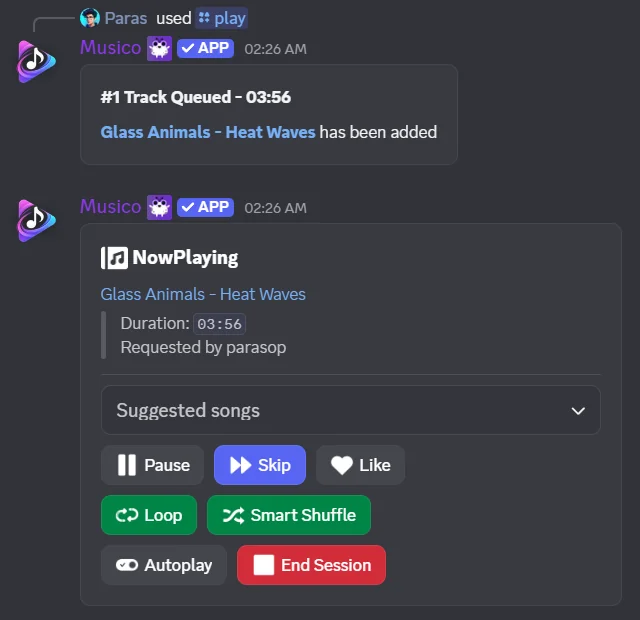
You can also paste a link instead of a song name, for example a Spotify playlist or a YouTube video:
/play https://open.spotify.com/playlist/...
See Music sources for every supported service.
What next?
| To... | Use |
|---|---|
| Add more songs | Run /play again; new songs go to the end of the queue |
| See what's queued | /queue |
| Skip a song | /skip |
| Pause and resume | /pause and /resume |
| Stop and disconnect | /stop |
More in Playback controls and Managing the queue.
Still stuck? Ask in the Musico support server.